AI Architectural Rendering Prompts: 10 Interior and Exterior Examples
Write clearer architectural rendering prompts with ten interior and exterior examples, material and lighting instructions, and honest output comparisons.
Featured tools: Sketch to Render, AI Interior Render and AI Exterior Render
“Make this look premium” gives an image model much less direction than “light plaster walls, natural oak cabinetry and soft daylight; retain the existing windows and camera angle.”
A useful architectural rendering prompt explains the subject, materials, light and features to retain. These ten examples provide starting points you can adapt to your own sketch, massing model or photo.
What should a rendering prompt include?
Organize the brief in this order:
- Subject and viewpoint: a living room facing the window, a street elevation or an aerial view of a residential model.
- Materials and their surfaces: light plaster on walls, natural oak on cabinetry and matte dark metal on window frames.
- Light: soft daylight, overcast light or warm evening light.
- Features to retain: the camera angle, openings, roof profile or furniture positions.
- Things to avoid: new windows, extra floors, people, text or logos.
Avoid conflicting style labels. Requests such as “perfectly accurate” do not establish accuracy. If you change a bright daytime source into a night scene, lighting and shadows must change too.
Reusable template:
Render this [interior / exterior / massing model] as a realistic scene. Apply [material A] to [surface A] and [material B] to [surface B]. Retain the original [viewpoint / openings / roof profile / furniture positions]. Use [lighting]. Do not add [unwanted elements].
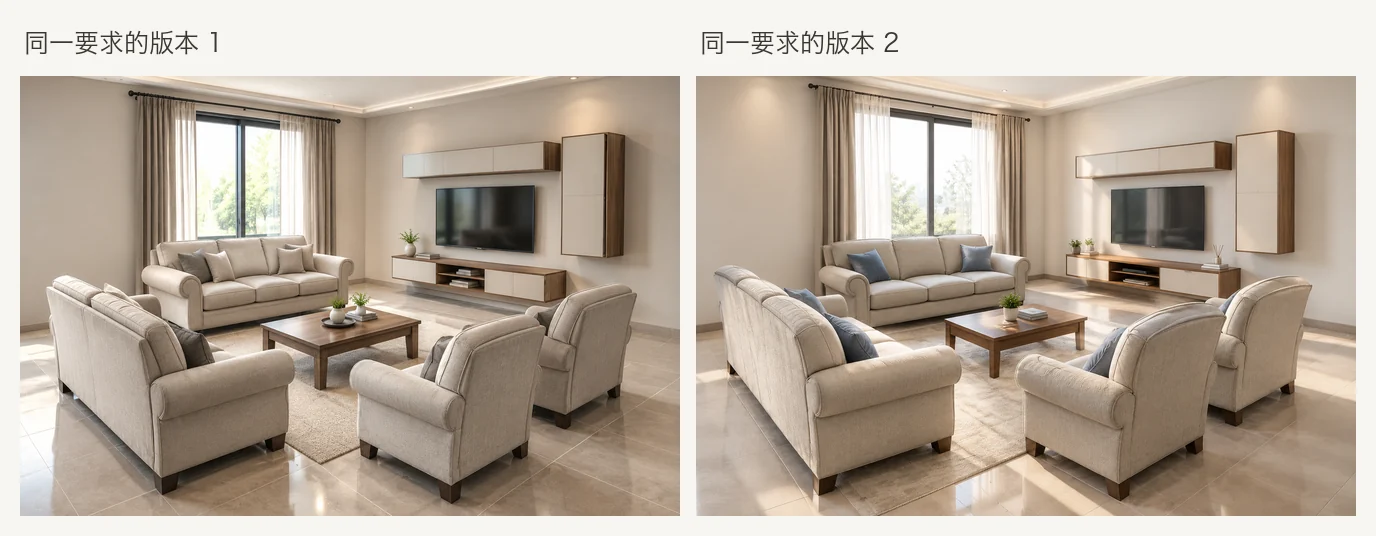
Identical inputs do not guarantee identical results. These two outputs use the same living room line drawing and specific brief. Their overall direction is similar, but furniture and accessories still vary.
Five interior rendering prompts
Use these with AI Interior Render, or an interior sketch or model in Sketch to Render.
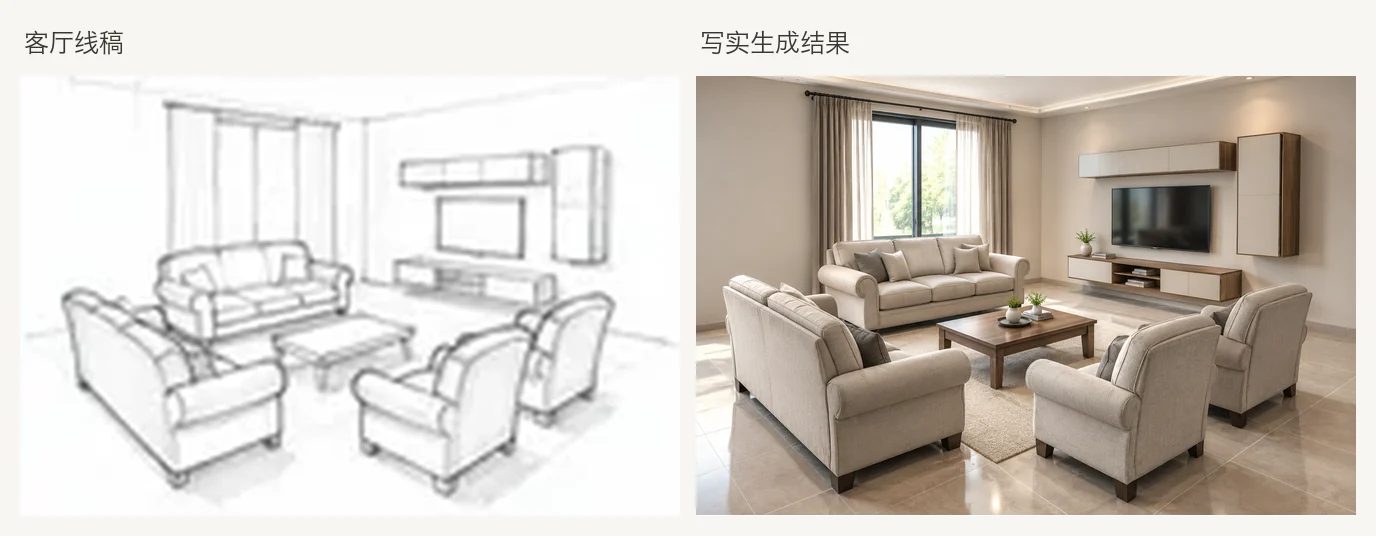
1. Contemporary living room in daylight
Render this interior line drawing as a calm, simple contemporary living room. Use light plaster walls, natural oak for the existing joinery and neutral flooring. Retain the camera angle, room structure, doors, windows and furniture positions. Use soft daylight from the windows. Do not add openings, people or text.
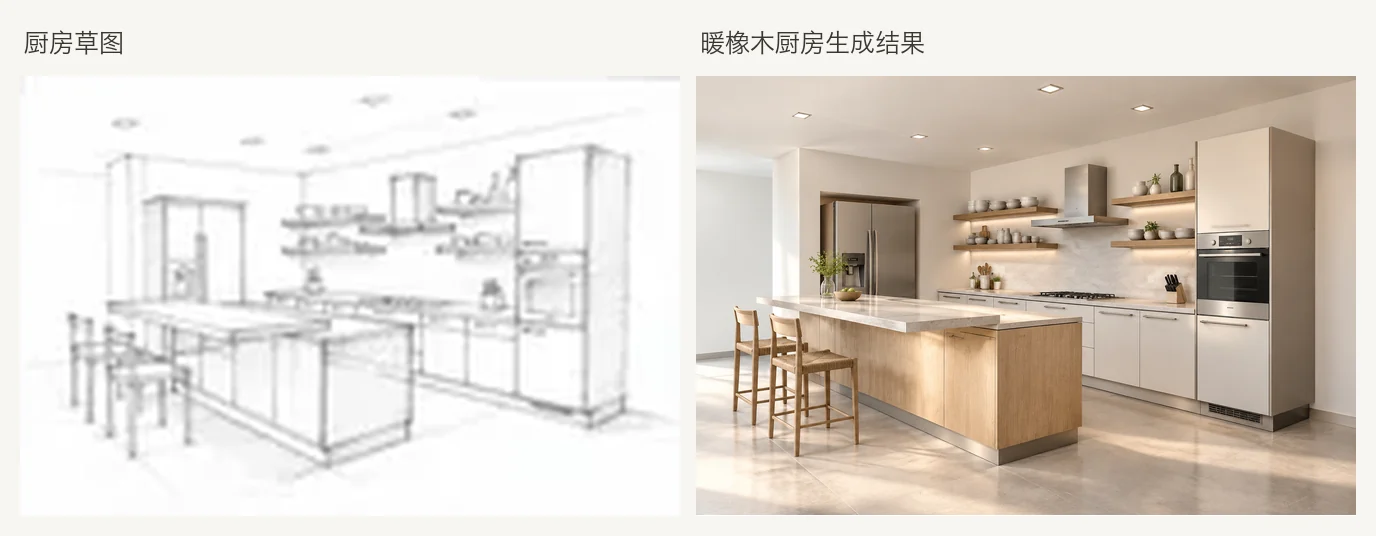
2. Warm oak kitchen
Render this kitchen sketch as a realistic interior. Use warm oak for the existing cabinets, pale stone for the island worktop and matte white walls. Retain the sink, windows and appliance positions. Use soft morning light. Do not add cabinetry, people or brand logos.
3. Bedroom with linen and pale wood
Render this bedroom perspective as a quiet, soft interior. Use pale linen bedding, soft gray plaster walls and light timber flooring. Retain the bed frame outline and all door and window positions. Use soft overcast daylight. Do not add built-in cabinets, a gallery wall or text.
4. Dining room in evening light
Render this dining room as a realistic scene. Use pale painted walls, a simple wooden table in the existing position and a warm pendant above it. Retain window and chair positions. Use soft evening interior light with gentle shadows. Do not change the openings or add people.
5. Change materials while retaining the composition
Retain this interior's composition, camera angle, doors, windows and furniture positions. Change only the materials: replace the oak joinery with darker walnut and use cooler gray plaster on the walls. Keep the flooring, layout and soft daylight.
For a broader redesign based on a room photo, continue with AI Interior Design.
Five exterior rendering prompts
Use exterior sketches and models with AI Exterior Render or Sketch to Render. To explore facade changes from a house photo, use AI Exterior Home Design.
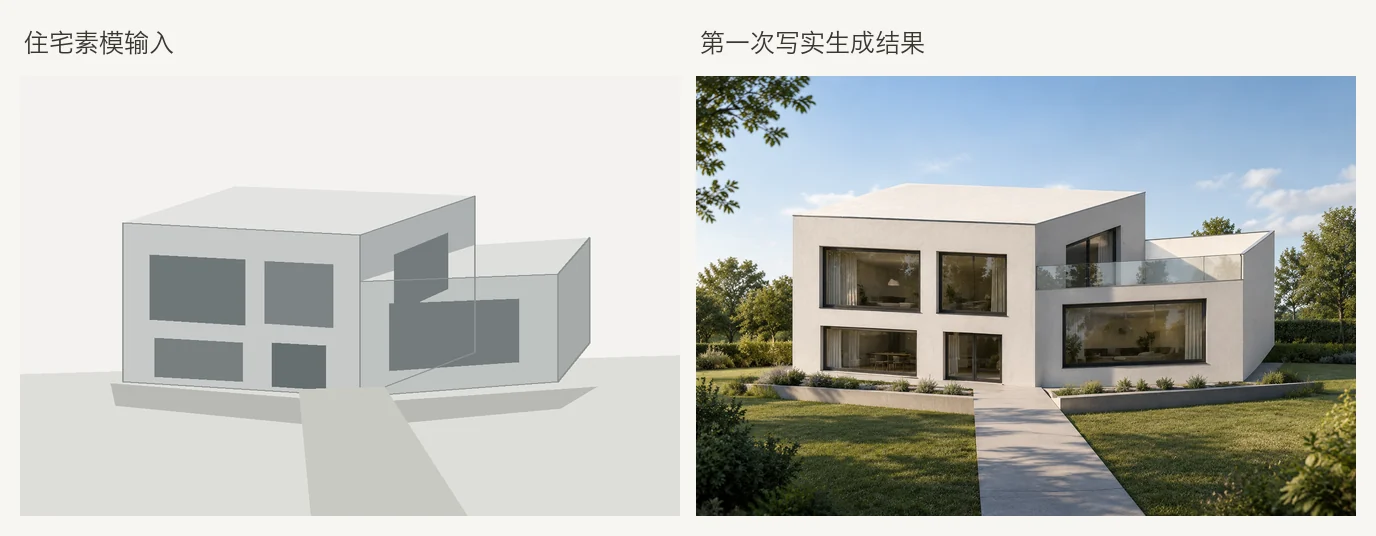
1. Pale stone house under overcast light
Render this residential massing model as a realistic scene. Use pale stone on the main walls and matte dark metal on the existing window frames. Retain the building volumes, eaves, openings and camera angle. Use overcast daylight with modest planting beside the entrance path. Do not add floors, text or annotations.
2. Brick terrace in late afternoon sun
Render this street elevation sketch as a brick terrace. Use warm red brick and painted timber window trim. Retain the cornice, steps and arrangement of doors and windows. Use late afternoon sunlight from the right with a restrained, natural street setting. Do not add floors or signs.
3. Modern villa at dusk
Render this modern villa model at dusk. Use smooth white plaster and dark metal window frames. Retain the flat roof edges, building volumes and openings. Use a soft sky with warm interior light only through the existing windows. Keep landscaping simple. Do not add wings, people or vehicles.
4. Timber cabin in morning mist
Render this cabin sketch in soft morning mist. Use vertical natural timber cladding and retain the dark metal roof from the source. Keep porch columns and window proportions. Place natural trees in the background. Do not add outbuildings or text.
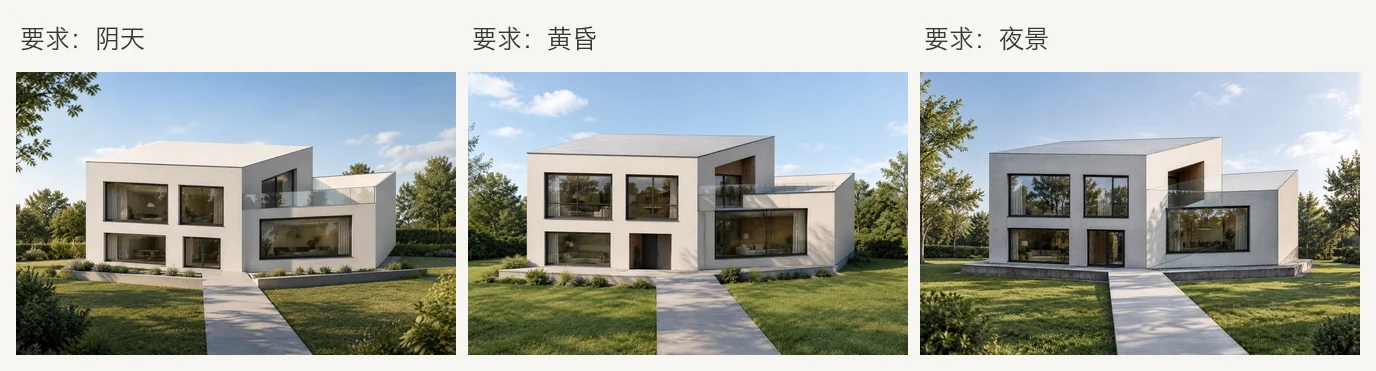
5. Compare three lighting requests on one model
Retain this residential model's volumes, openings and viewpoint. Use pale walls and dark window frames. Change only the light to overcast daylight. In later attempts, request dusk and then night while keeping other conditions unchanged. Do not add railings or other building elements.
These three images show the actual attempts in this example set. Although the requests specified overcast light, dusk and night, all three outputs remained daytime scenes and introduced railings absent from the model. They illustrate a material and massing direction, not successful control of lighting or geometry.
What do the source and reference images contribute?
In Sketch to Render, the source provides composition cues; the prompt and references guide materials, color and light. Export a clean JPG, PNG or WebP, crop away software panels and clarify ambiguous lines first.
- Use fewer, more specific references. One or two material or light references can be easier to interpret than a large collection of conflicting styles.
- Crop to the relevant detail. A timber close-up reduces the chance of importing unrelated furniture and layouts.
- Review against the source. If a reference starts dictating the layout, remove competing references and restate the structural requirements.
For an overhead floor plan, use AI Floor Plan Render or Floor Plan to 3D.
Troubleshoot the result
| Problem | Possible cause | Adjustment |
|---|---|---|
| Blurred building or materials | Vague brief or low-resolution source | Use a clearer source and name each material and surface. |
| Mixed styles | Too many competing labels | Choose one direction and describe specific materials. |
| Materials applied to the wrong surface | Missing surface assignments | Write “oak cabinets, plaster walls.” |
| Extra windows, floors or railings | Ambiguous drawing or invented details | Explicitly exclude them, regenerate from the source and check each feature. |
| Dusk or night still looks like daytime | Conflicting source cues or an ignored request | Isolate the lighting change; consider revising the source. Do not describe an unmet request as a successful example. |
| Reference furniture is copied | Too much layout information in references | Crop to material details and restate the original layout. |
Change one variable at a time: materials, then light, then decoration. This makes it easier to see what each revision achieved.
What decisions can the image support?
AI rendering supports design comparisons. It is not a measured survey, construction drawing or lighting simulation. “Retain the structure” is an instruction, not a guarantee. Verify openings, roofs, railings, circulation, dimensions and material performance before making design or construction decisions.
Try it: Adapt a prompt to your project in Sketch to Render, AI Interior Render or AI Exterior Render. Check structure before refining materials. More guides are on the Eaveform Blog.