AI Virtual Staging for Real Estate: From Room Photo to Furnished Listing Image
Create restrained virtual staging from a room photo, check furniture scale and fixed finishes, and prepare clear disclosure before using a property image.
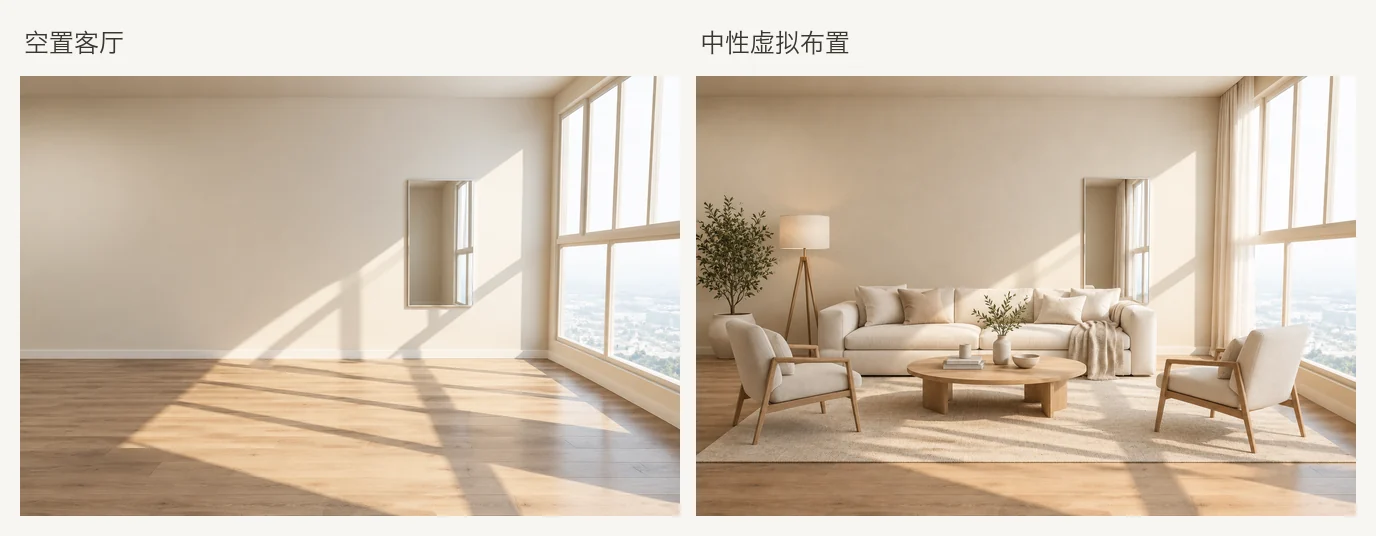
Featured tool: AI Virtual Staging
Related tools: AI Empty Room, AI Interior Design and AI Living Room Design
An empty-room photo records the property, but it may not help viewers imagine a sofa, bed or dining table in the space. AI virtual staging adds furniture and accessories to make a room's intended use easier to understand.
For a property presentation, the intention should be to change movable furnishings. Do not use it to conceal defects, enlarge the room or imply that generated furniture is included in the sale. This guide explains a restrained workflow in Eaveform and the checks to make before using an image publicly.
When is virtual staging appropriate?
It can be useful when:
- The room is vacant and viewers struggle to understand furniture placement.
- You want one or two neutral arrangements for a main living room or bedroom.
- An agent and client need to discuss a furnishing direction before buying anything.
- You can clearly label the edit and retain the source photo for comparison.
Do not use a generated image directly if:
- Furniture conceals existing stains, damage or missing equipment.
- Generation has changed windows, flooring, wall lines or the room shape.
- The image implies finishes or dimensions the property does not have.
- Required disclosure is missing.
Virtual staging is a presentation technique. It does not replace evidence of the actual property or establish that the furniture is part of the transaction.
Select the room photo first
Choose a source that clearly documents the room:
- Permission: confirm you may edit and publish the property photo.
- Visible structure: show corners, openings and flooring.
- Even light: keep materials readable and avoid strong HDR halos.
- Reasonable perspective: ultra-wide photos already distort scale; furniture requires extra scrutiny.
- Real-world tidying: remove rubbish, cables and personal belongings before shooting when possible.
- Privacy: remove faces, documents and personal information.
- One main room: overlapping spaces make furniture scale harder to evaluate.
The empty-room images below are outputs from an earlier AI furniture-removal step. Their walls, floors and fixed fittings were reviewed before staging. They are not unedited site photos; retain the complete sequence when presenting them.
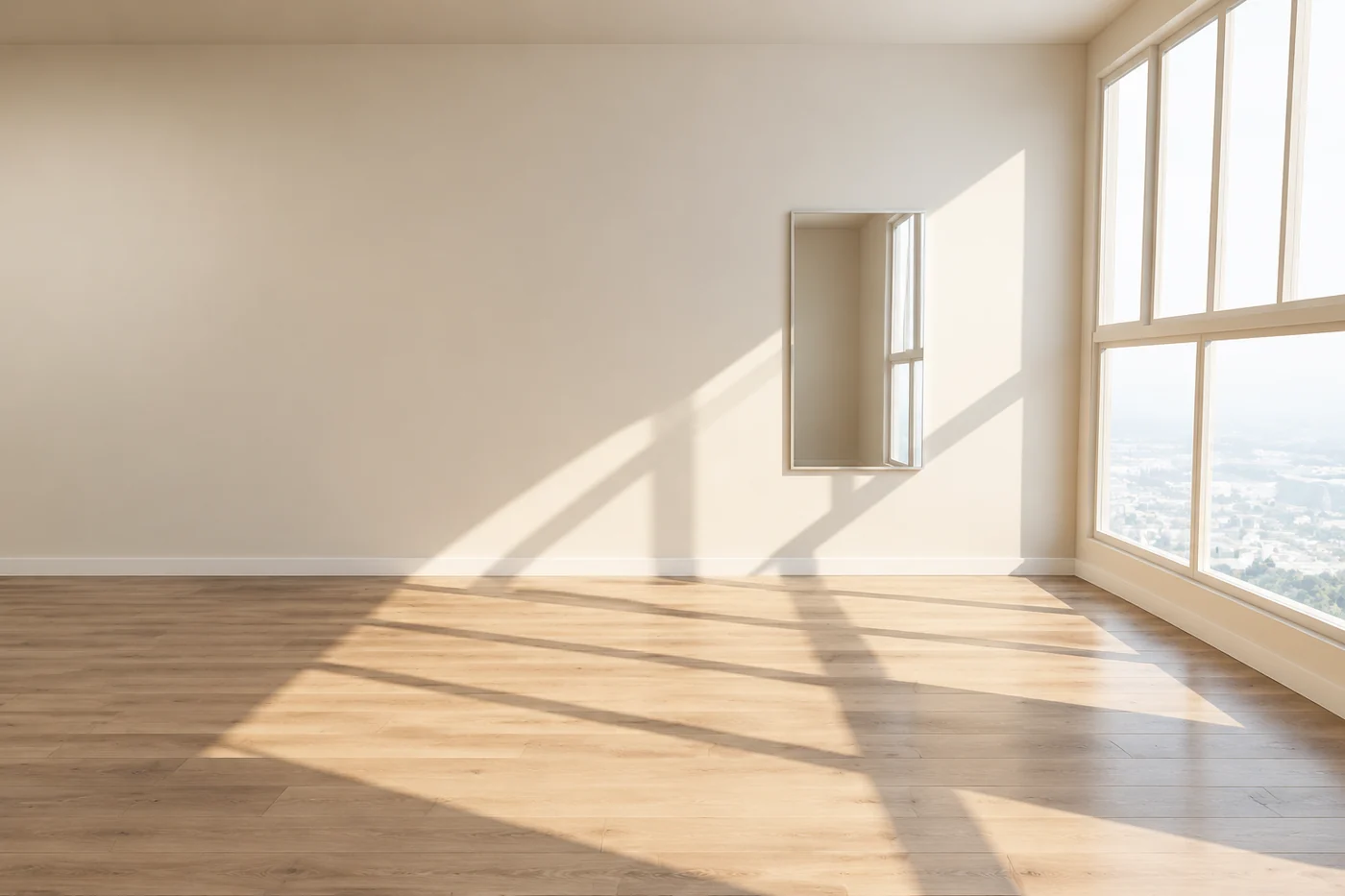
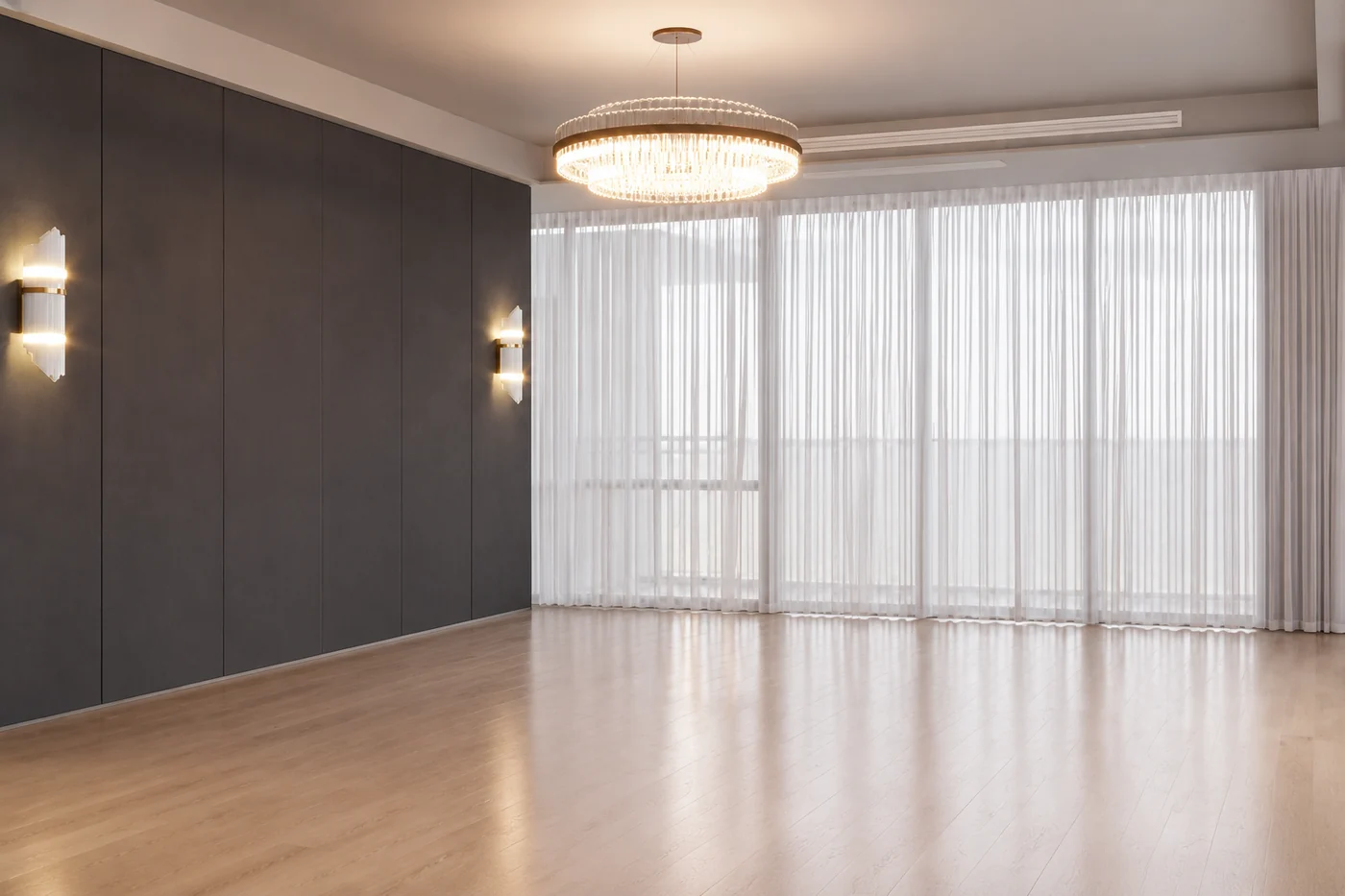
Clear the old furniture or stage directly?
Already vacant: upload the original photo and request the furniture.
Furnished, with a completely new arrangement intended: use AI Empty Room, check the reconstructed walls and floors, then stage the result. Surfaces hidden behind the original furniture remain AI reconstructions.
Replacing only selected items: name what to remove and what to retain so the model does not redesign the whole room.
Changing paint, floors or cabinetry: this is closer to an AI Interior Design proposal. Disclose those changes when using the image in property marketing.
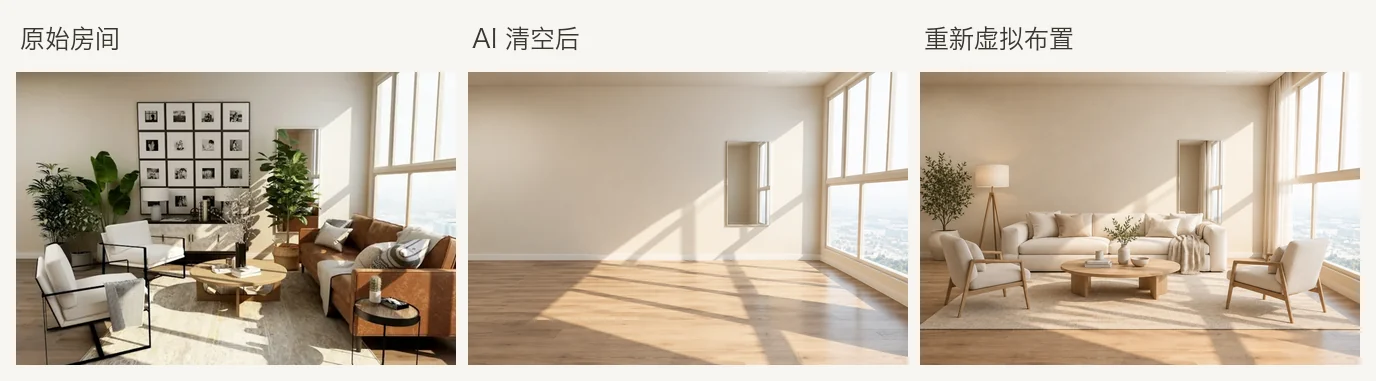
Stage a room in Eaveform
1. Upload a vacant or cleared room
Open AI Virtual Staging and choose a clear photo with natural light and readable structure.
2. Choose an arrangement that suits the room
The goal is movable furniture and accessories. Begin with a simple, neutral direction so scale and circulation are easy to evaluate.
3. Specify furniture, retained features and clear routes
Replace “make this living room look luxurious” with a concrete brief:
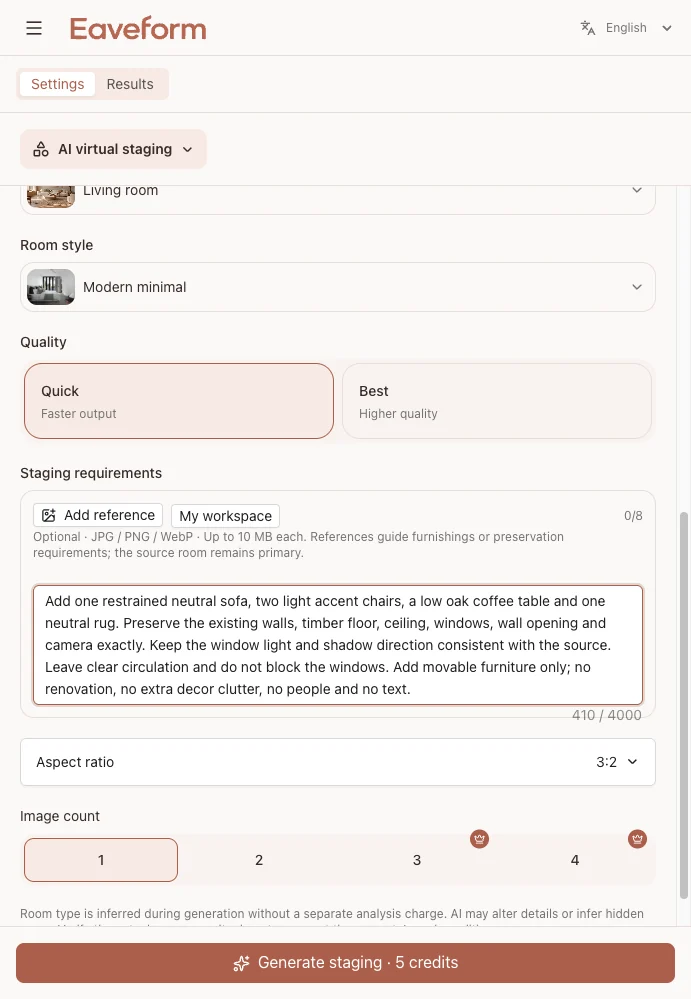
Virtually stage this living room with a modestly sized sofa, two pale armchairs and a neutral rug. Retain the existing walls, floor, ceiling, doors, windows, built-in cabinets and camera angle. Keep the entrance and main circulation routes clear. Add only movable furniture; do not alter the finishes or add people or text.
The example settings used Living room, Modern minimal and Quick, with the furniture count, retained features and clear routes described in the brief.
4. Compare against the source
Check:
- Furniture sits on the floor with believable proportions.
- Shadows follow the source lighting.
- Doors and principal routes remain clear.
- Flooring, windows, built-ins and fixed lights have not changed.
- Furniture quantity supports the room rather than overcrowding it.
5. Label the edit before public use
Before adding the output to a listing, advertisement or social post, use the disclosure required by your market and platform, such as “virtually staged” or “furniture added with AI.” Retain the unstaged source photo.
Which styles suit a listing?
The primary purpose is to help viewers understand the room. Start with:
- Neutral colors: soft white, warm gray, pale oak and muted fabrics.
- Limited furniture: enough to explain function without filling every corner.
- Plausible layouts: sensible sofa orientation and clear space beside beds and dining areas.
- Natural light: avoid strongly colored lighting and theatrical shadows.
- A coherent direction: choose furnishings that suit the building rather than forcing a theme.
Avoid prominent brands, extravagant luxury objects, neon, seasonal decorations and furniture blocking necessary routes. For a personal living room design study, AI Living Room Design can support a more individual direction.
Bedroom prompt:
Virtually stage this bedroom with a reasonably sized bed, soft linen bedding, a pale rug and simple bedside lamps. Retain all fixed finishes, cabinetry, doors, windows and wall colors. Keep the room structure unchanged, use few pieces and leave clear routes beside the bed.
Review the before-and-after comparison
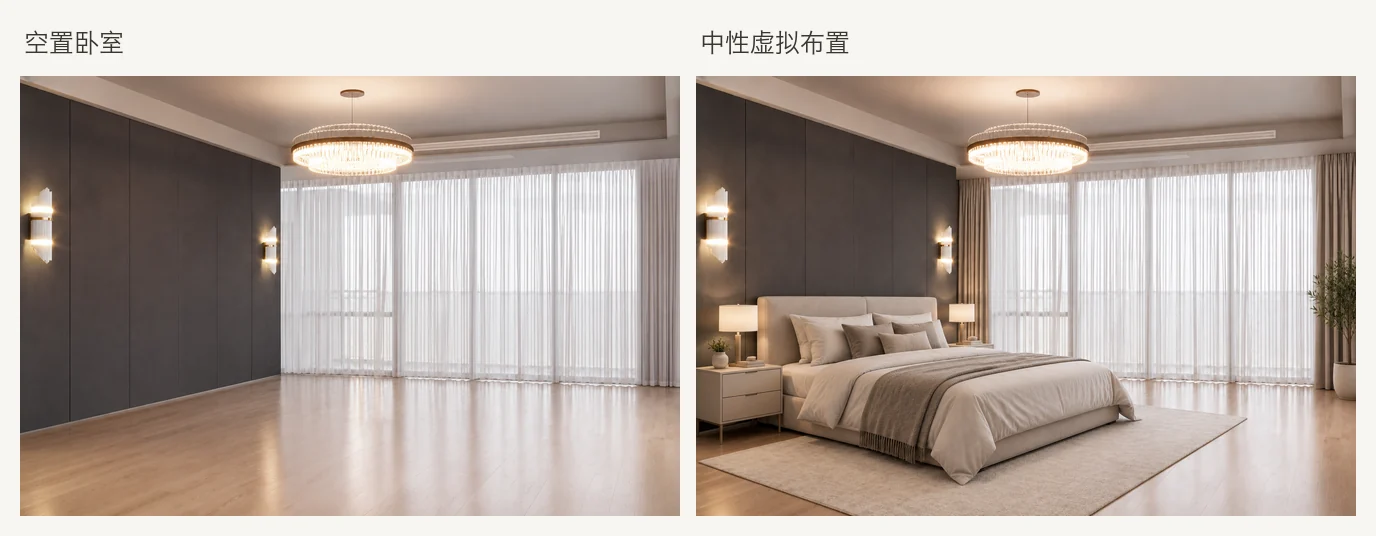
These two examples retain the broad relationships of the fixed finishes. The living room output adds furniture, curtains and plants; the bedroom retains the dark wardrobe wall, curtains and pendant. Added decoration also needs review and disclosure, not just the sofa and bed.
This example set does not contain an intentionally overcrowded or clashing-color failure group. Ask whether a viewer visiting the property would consider the image a fair representation. If the room appears significantly larger, newer or free of a real defect, regenerate or do not use it.
Add staging to a property-photo workflow
- Select originals that show the real room structure clearly.
- If necessary, remove existing furniture and inspect reconstructed areas.
- Prepare one or two neutral options for the main living room and bedroom.
- Compare fixed finishes, scale and circulation beside the original.
- Have the person responsible for the listing review the images and captions.
- Publish approved versions with the required disclosure.
- Keep unstaged photos available for comparison.
Not every room needs staging. A clear, bright photograph of an empty kitchen may explain it better than added furniture and decoration.
Disclosure, permissions and final checks
For US listings, follow the applicable MLS, brokerage and platform requirements. Other markets have their own requirements. Use the appropriate caption, remarks or platform field and make the edit clear.
Before publication, confirm:
- Fixed finishes and structure correspond to the property.
- No damage or other existing condition is concealed.
- Furniture scale and arrangement are plausible.
- Doors and main routes remain clear.
- The caption identifies virtual staging.
- You have permission to use and publish the source.
- The listing owner or responsible professional has approved the set.
Virtual staging does not guarantee product availability, furniture models or physical fit. This guide is not legal, brokerage or MLS compliance advice. Generation can unintentionally change fixed features, so review every output against both the source photo and the actual room.
Try it: Start with a vacant-room photo, or clear the existing furniture using AI Empty Room, then generate a neutral arrangement with AI Virtual Staging. Apply the required disclosure before public use. More guides are on the Eaveform Blog.