How to Turn a Floor Plan Image into a 3D Concept with AI
Prepare a clear floor plan, generate a roofless 3D concept in Eaveform and check rooms, openings and circulation before exploring materials or interiors.
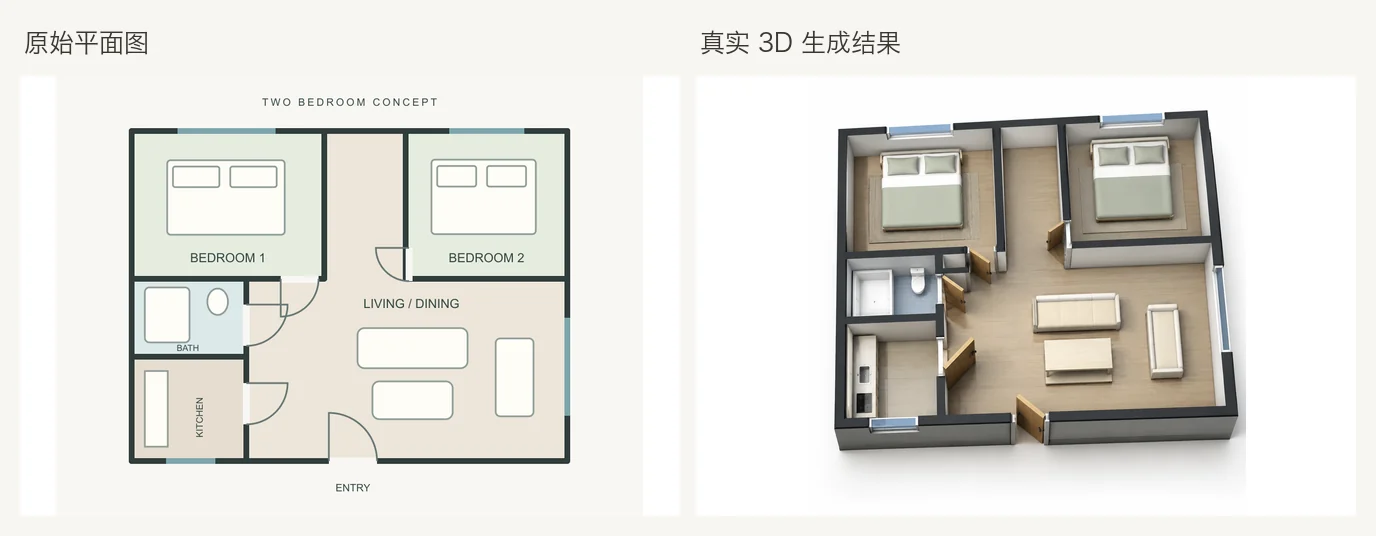
Featured tool: Floor Plan to 3D
A floor plan shows how rooms are arranged, but not everyone can quickly picture those relationships in three dimensions. A roofless aerial concept can make room connections, entrances and functional zones easier to discuss.
Upload a plan to Eaveform's Floor Plan to 3D, generate a visual concept and decide whether to investigate materials, furniture or an interior perspective next.
Do not confuse this with Image to Floor Plan, which explores a plan concept from a photo or sketch. Here the direction is from an existing plan to a 3D-looking concept image. The output is an image, not an editable BIM or CAD model.
Which plans work best?
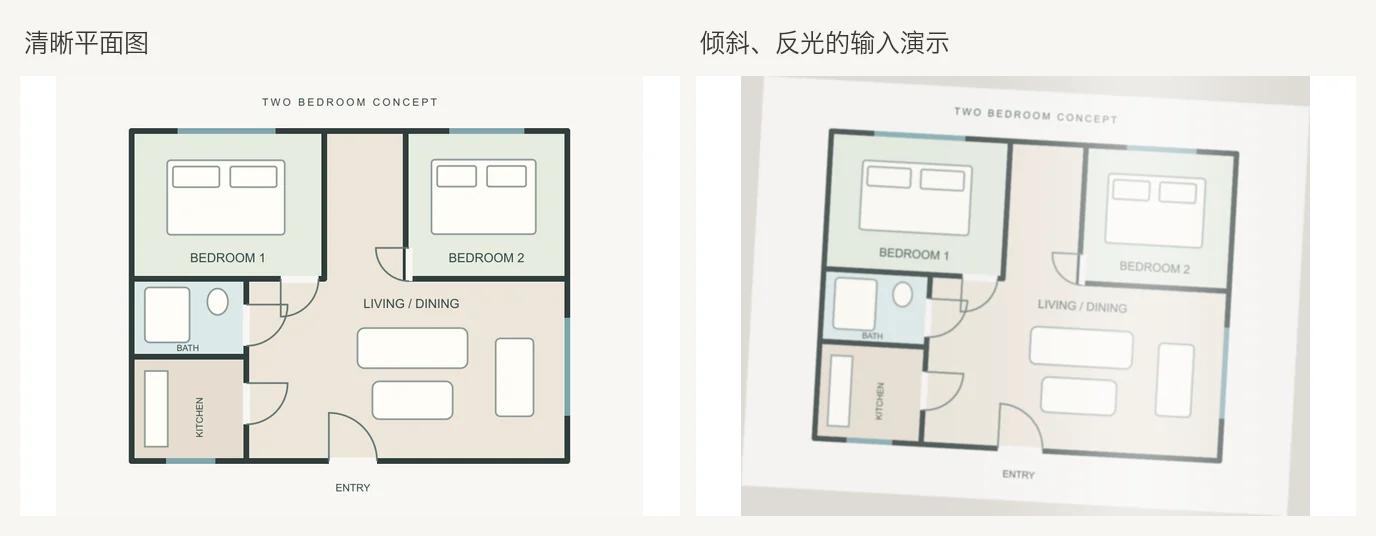
AI interprets lines, symbols and annotations. Clear inputs make room relationships easier to read. Prefer:
- Dark wall lines on a pale background.
- Legible room names, opening symbols and door swings.
- One floor per image.
- Simple furniture symbols that do not obscure walls and circulation.
- A clean crop without unrelated borders, prices, advertisements or branding.
Glare, perspective distortion, low resolution, overlapping walls and several floors combined into one image make interpretation harder.
Make a working copy, straighten and crop it, improve contrast and clarify important walls and openings. Retain the original for comparison.
The left image below is the clear plan used for generation. The right image deliberately simulates tilt, glare and mild blur to illustrate input problems. It was not used to generate a failed 3D output.
Generate a 3D concept from a plan
1. Upload the floor plan
Open Floor Plan to 3D and upload a plan image you have permission to use.
2. Specify the floor and presentation
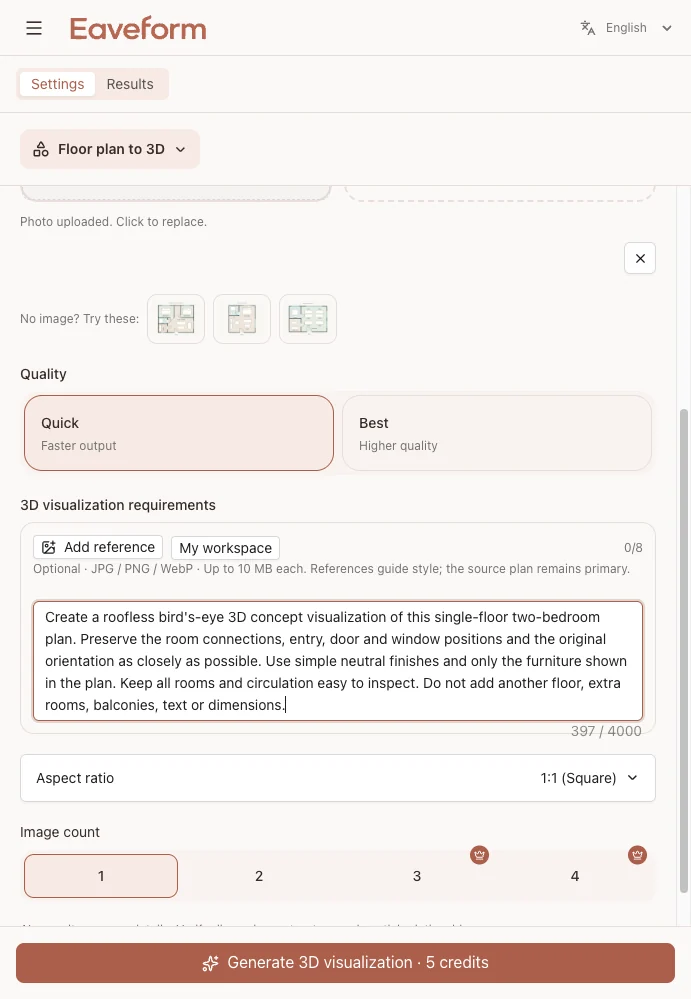
Explain which floor is shown, any wall-height assumptions and whether you want a roofless aerial view. Clear presentation requirements make successive versions easier to compare:
Generate a roofless aerial 3D concept image from the attached floor plan. Aim to retain the room connections, opening positions and overall orientation. Use simple, neutral materials. Do not add floors or building areas absent from the plan.
This example used Quick quality and one image. The brief identifies a single-floor, two-bedroom layout and requests the original entrance, connections, doors, windows and orientation.
3. Check spatial relationships first
Before assessing colors and materials:
- Count the rooms against the plan.
- Find the entrance and trace the main circulation route.
- Check doors connecting the kitchen, bedrooms and bathroom.
- Compare the external outline for invented areas.
- Look for furniture hiding wall or door mistakes.
Review style only after the room relationships are readable.
This output retains the broad organization of two bedrooms, a bathroom, kitchen and living space. It can support a layout discussion. Openings, wall thicknesses and furniture scale still require comparison with the original plan.
4. Adjust one priority at a time
If the first output is useful, give the second attempt one focused objective:
Create another concept that makes the main circulation route and functional zones easier to read. Retain the agreed room connections, building outline and floor count. Do not increase the building area.
If room positions or openings are wrong, clarify the plan or instructions and regenerate from the original. Do not continue decorating an incorrect 3D image.
What can you usefully assess?
More suitable for discussion:
- Approximate room counts and adjacencies.
- The route from the entrance to the main living area.
- Relative positions of functional zones.
- Visual differences between layout concepts.
Do not rely on the output for:
- Exact dimensions, spans or corridor widths.
- Wall thicknesses, structural systems or construction details.
- Automatically generated room labels and dimension text.
- Actual furniture sizes or site fit.
- Accurate locations of small stores, recesses and secondary openings.
Use it to discuss whether a layout is understandable, not to establish construction feasibility or compliance.
What comes after the first 3D image?
| Next goal | Tool |
|---|---|
| Keep an overhead plan and explore color or materials | AI Floor Plan Render |
| Explore a furnished interior perspective from a plan | Floor Plan to Interior Design |
| Investigate a new layout concept before 3D visualization | AI Floor Plan Generator |
| Generate a plan concept from a photo or sketch | Image to Floor Plan |
| Clear or refurnish a real room photo | Empty Room or Virtual Staging |
Keep materials simple and furniture sparse in the first version. Heavy styling can hide connection problems. Once the broad layout matches the source, move to interior perspectives and material studies.
Common problems and adjustments
| Problem | What to try |
|---|---|
| Mirrored rooms or a rotated plan | Request the original orientation, keeping the image top as the plan top, and upload a cleaned source. |
| Missing doors or sealed-looking rooms | Identify important connections by room name and improve source contrast. |
| Oversized sofas or floating tables | Request little or no furniture first; explore furnishing later. |
| Added building areas or floors | Explicitly exclude them and crop the source to the intended boundary. |
| Hand-drawn walls become confused volumes | Redraw key wall lines and clarify room labels before trying again. |
| Text and dimensions change | Use the original drawing for all annotations; disregard generated dimension text. |
Only the clear plan was used for the generated example in this article. The simulated poor-quality input is not presented as a fabricated failure-and-retry sequence.
Quick review before sharing
- Room count: does it match the source?
- Entrance and circulation: can you trace a route to the principal spaces?
- Openings: do sampled doors and windows correspond to the plan?
- Outline: are there extra rooms, bays or floors?
- Furniture: does it clarify the layout or conceal mistakes?
- Caption: is the output clearly identified as an AI concept image?
If the first four checks fail, revisit the plan and spatial instructions rather than adding style descriptions.
Floor Plan to 3D produces visual concepts for discussion. It does not produce editable BIM/CAD, measured models, engineering calculations or construction drawings. Proportions, text and spatial relationships may diverge from the source. Qualified professionals must verify site measurements and produce appropriate documentation before design, demolition, construction or compliance decisions.
Try it: Upload a clear plan to Floor Plan to 3D, compare rooms and circulation with the source, then explore materials or interiors. More guides are on the Eaveform Blog.