How to Turn a Moodboard into an Architectural Rendering with AI
Turn focused material and lighting references into a rendering study. Combine a source with a clear brief and compare alternatives on Eaveform's canvas.
Workflow: Image Workspace and Infinite canvas, available inside the application.
Related tools: Sketch to Render, AI Interior Design and AI Exterior Render
A moodboard may collect the timber, walls, furniture and light you like, but uploading the whole collage does not tell AI which details matter most.
A more useful workflow starts with one clear direction, a few focused references and a room photo or architectural sketch. Generate a concept, then compare alternatives together. The moodboard guides material and atmosphere rather than becoming a second layout for the model to copy.
Step 1: describe the direction in one sentence
Look at the board and ask what its images have in common:
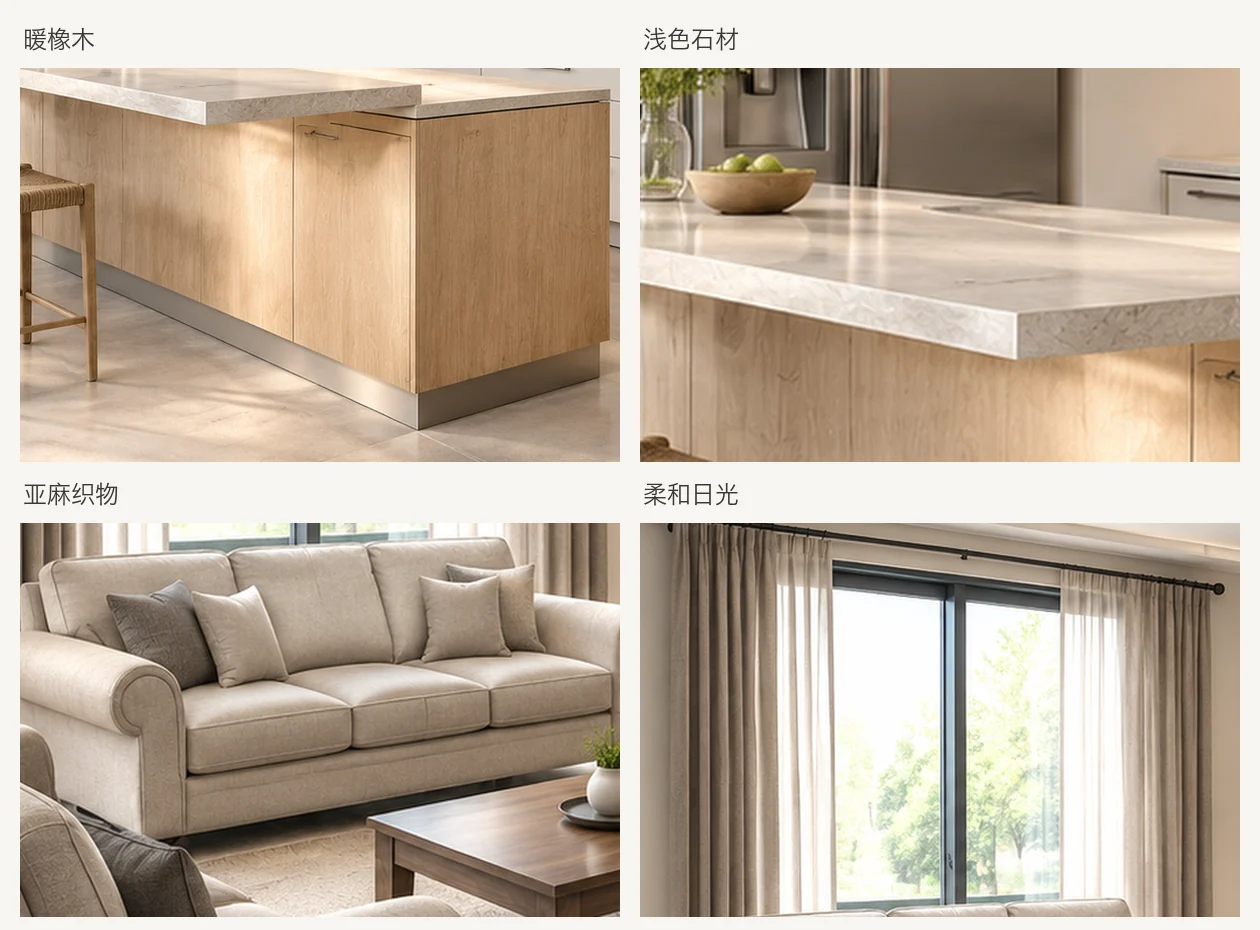
Warm oak cabinetry, pale plaster walls, soft daylight and simple contemporary furniture. Avoid dark walnut and industrial black steel.
This sentence anchors the prompt. If it combines competing timbers, several periods and contradictory lighting, remove secondary references before generating.
Step 2: select useful reference images
More images are not necessarily better. Three to five focused references can form a useful working board; upload only as many as the selected tool currently supports.
Keep references that show:
- Legible timber grain, plaster, stone, metal or fabric.
- Consistent light appropriate to the interior or exterior.
- Building forms or furniture silhouettes relevant to the project.
- One or two images that communicate the overall direction.
Remove or reduce the priority of:
- Magazine covers dominated by logos, watermarks or text.
- Conflicting styles without a clear hierarchy.
- Photos primarily about people, vehicles or lifestyle objects.
- Repeated images that communicate the same idea.
Crop each reference to its purpose. For timber color, show the timber itself. For soft window light, avoid retaining unrelated furniture that could compete with the project.
The four references in this demonstration board are crops from the rendering examples used in this article set. Oak and pale stone come from the kitchen output; linen and daylight come from the living room output. They demonstrate focused crops, not a material schedule for another client project.
Confirm that you have permission to process the images and remove client information or other sensitive content.
Step 3: generate in the image workspace
Use the workspace to combine a source, references and a specific generation brief.
1. Choose the source and tool
- Room photo: use AI Interior Design to explore interior changes.
- Interior or exterior sketch or model: use Sketch to Render. The source supplies composition cues and references guide materials and atmosphere.
- Building photo or exterior model: use AI Exterior Render or the corresponding exterior design workflow.
2. Explain each reference's role
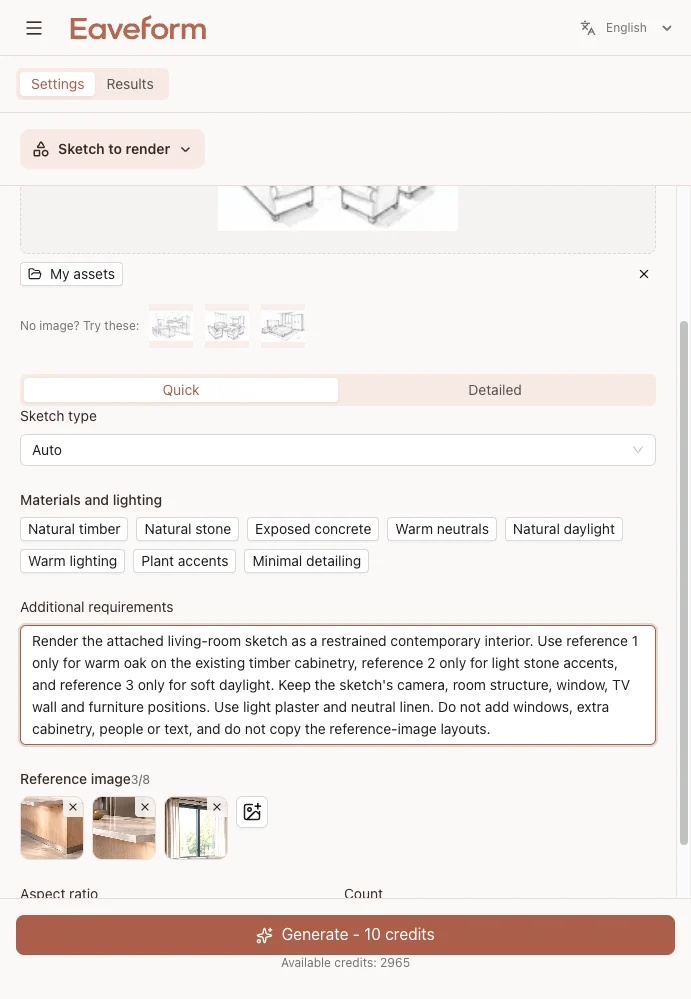
Prioritize the most important material or lighting reference. State which surface should receive each material and which image is only a lighting reference:
Use the attached material references to apply warm oak to the existing cabinetry and pale plaster to the walls, keeping a simple contemporary interior direction. Retain the original camera angle, doors and windows. Use soft daylight. Do not add openings, cabinetry, people or text, and do not copy the reference images' furniture layouts.
In this example, the source is a living room drawing. Three references guide warm oak, pale stone and soft daylight, with their roles described individually in the brief. That is easier to evaluate than “use these references and make it natural.”
3. Check structure before materials
Compare the output beside the source. Review openings, corners, flooring and major furniture positions before evaluating the oak color or plaster texture.
If the room geometry has drifted, more material adjectives usually will not fix it. Return to the original source, remove competing references and generate again.
Step 4: compare alternatives on Infinite canvas
A single rendering does not explain a design process. Use Infinite canvas to retain the source, organize options and record differences:
- Place the original photo or sketch on the left or at the top.
- Arrange generated alternatives at comparable viewing scales.
- Note specific issues, such as “window moved,” “wrong floor material” or “reference sofa copied.”
- Carry forward the versions whose structure and direction are suitable for the discussion.
The question becomes which version best matches the original priorities, rather than which image looks most impressive.
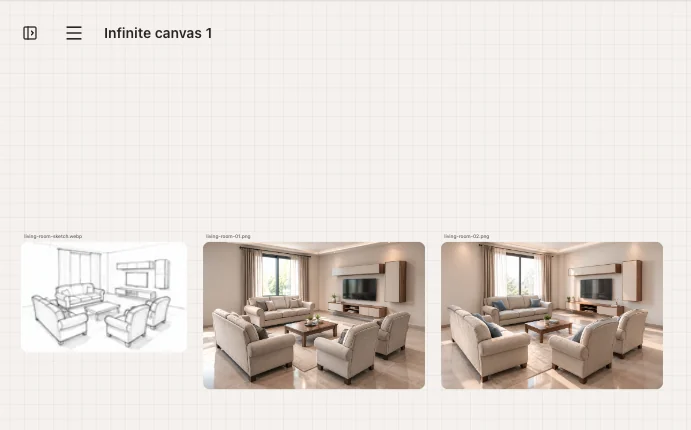
Example: one source, two generated versions
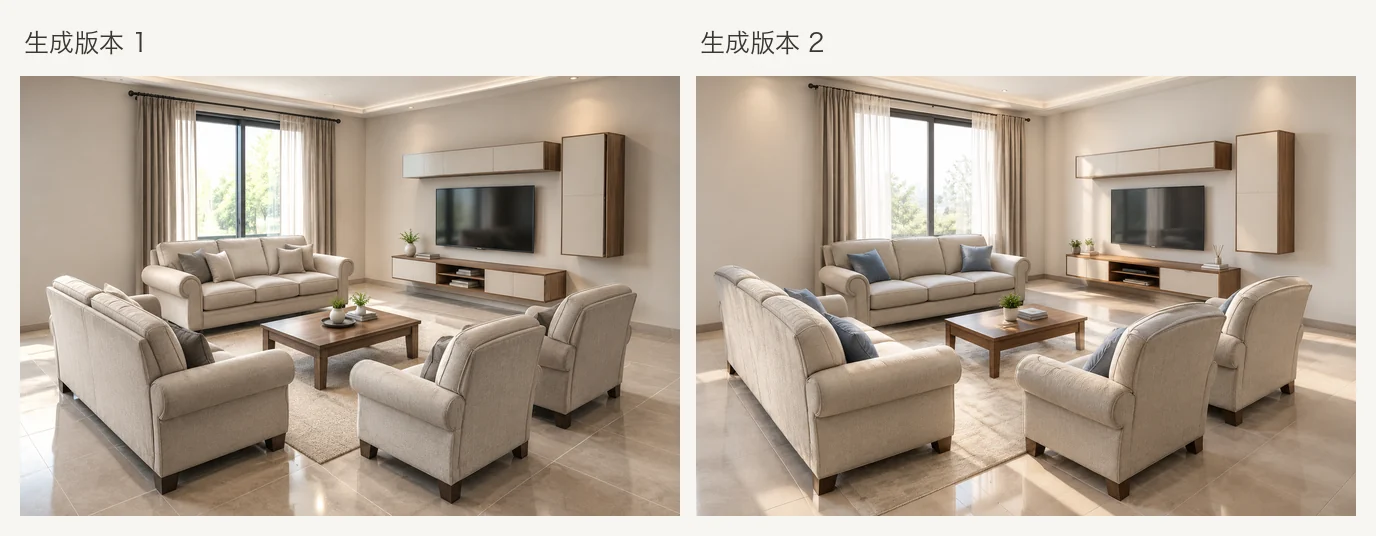
This example uses the same living room drawing and the same specific request for two successive outputs. It does not claim to demonstrate two deliberately contrasting styles.
Both attempts request warm neutral materials, soft daylight and the existing room structure. The overall direction is similar, but furniture, cushions and decorative details vary. Comparing them together helps you reject structural problems before discussing the furnishing differences.
To compare “oak in daylight” with “dark timber at dusk,” change one group of variables at a time while retaining the source and structural requirements. Otherwise, it is hard to separate the intended design change from random reconstruction.
When the output misses the moodboard
| Problem | Adjustment to try |
|---|---|
| A secondary reference dominates | Remove competing images and retain one main direction with one supporting reference. |
| The result copies the reference layout | Crop the reference to the material and explicitly retain the source layout. |
| Materials appear on the wrong surfaces | Assign each material: oak cabinetry, plaster walls and unchanged flooring. |
| The intended light is unclear | Reduce competing style instructions and describe the light source, time and softness. |
| People or props appear | Remove references dominated by them and explicitly exclude people and clutter. |
| Doors or walls change | Return to the original source and restate the structure; avoid repeatedly editing a distorted result. |
Change one variable or remove one conflict at a time so you can identify which reference or instruction affected the result.
Six checks before sharing
- Is the original photo or drawing shown beside the output?
- Are openings, roof edges and major wall lines suitable for this discussion?
- Does the result still match the initial design sentence?
- Are invented furniture and reconstructed surfaces identified as conceptual?
- Do you have rights to the source and references?
- Is the next step another material study, a furniture adjustment or measured design work?
An image with incorrect geometry can still be a color reference. Do not present it as an executable proposal.
When a full moodboard workflow is unnecessary
If words explain the direction adequately, start directly in AI Interior Design or AI Exterior Render. For sketch projects, begin with Sketch to Render.
Use the fuller workspace and canvas process when clients need to see the material references or compare several directions. For furniture changes only, clearing the room and using AI Virtual Staging may be sufficient.
Moodboard renderings support visual exploration. They are not material schedules, product specifications or construction instructions. Reference images can guide appearance but do not guarantee structural fidelity. Verify dimensions, material performance and project requirements independently before procurement or construction.
Try it: Select a few focused references, upload the supported number in Sketch to Render, AI Interior Design or AI Exterior Render, then compare retained versions on Infinite canvas. Find more guides on the Eaveform Blog.